-
E-mail
625575592@qq.com
-
Phone
13102286368
-
Address
201, Gate 1, Building 5, Liandong U Valley Research and Innovation Park, Shuanggang Town Industrial Park, Jinnan District, Tianjin City
Tianjin Haiyida Instrument Equipment Co., Ltd
YD-50E Intelligent Tablet Hardness Tester Operating Instructions
Date: 2025-05-26Read: 0
YD-50E intelligent tablet hardness tester is a drug testing instrument developed by Tianjin Haiyida Instrument Equipment Co., Ltd. for measuring the quality, hardness, thickness, and diameter of tablets. Widely used in pharmaceutical factories, drug testing institutes, and related research institutions. This instrument meets the requirements of the 2020 edition of the Chinese Pharmacopoeia. The operating instructions for YD-50E intelligent tablet hardness tester are as follows:
1、 Power switch and user login
Press the power switch on the back panel of the YD-50E tablet hardness tester to the "on" position, and the indicator light in the power switch will light up. At this time, the instrument enters a series of self check screens, and the sound of the motor running can be heard. After the instrument passes the self-test, the following interface appears.
2、 Experimental setup
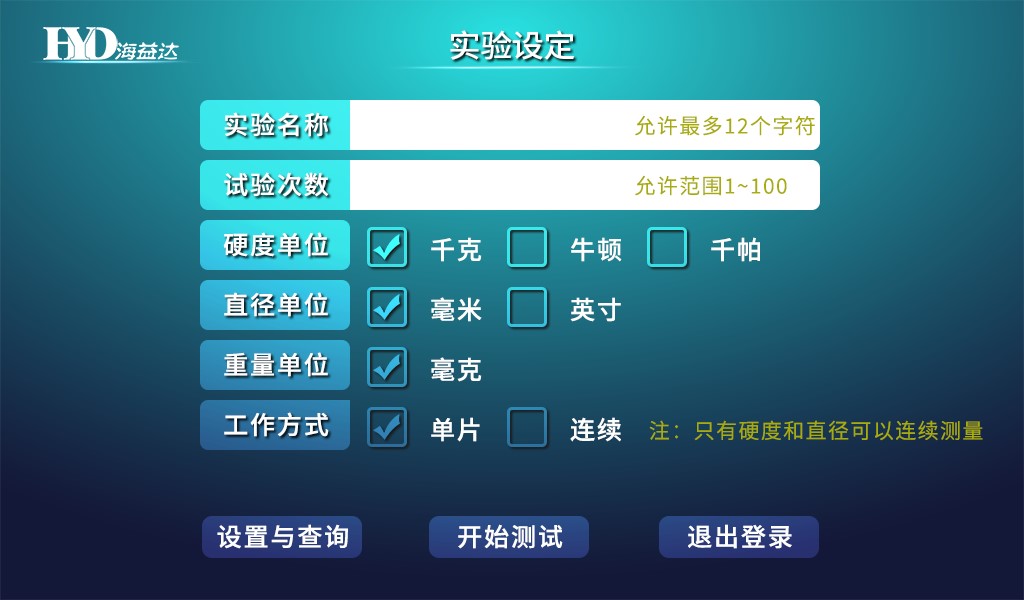
On this interface, experimental parameters such as "experiment name", "number of experiments", "hardness unit", "diameter unit", "weight unit", and "working mode" can be set.

1. Set the experiment name
Before conducting each experiment, it is necessary to set the "experiment name". Click on the blank space to the right of "Experiment Name" to bring up a text input interface. You can switch between Chinese and English using the "English/Chinese" button and enter the experiment name using the on-screen keyboard.
2. Set the number of experiments
Click on the blank box on the right side of "Test Times", a numeric keypad will pop up. Enter the measurement quantity according to the experiment needs and press "Enter" to confirm. The number of experiments is the total number of single/continuous experiments under the name of this experiment.
3 Setting Units
Hardness units, diameter units, and weight units can be directly selected on the "Experimental Settings" interface. Among them, hardness units can be selected from kilograms, newtons, and kilopascals; Diameter units can be selected in millimeters or inches; The weight unit supports milligrams.
4. Set working mode
The working mode supports both single-chip and continuous working modes.
3、 Tablet sample hardness testing

After setting the experimental parameters in the "Experimental Settings" interface, place the drug on the tablet tray and bring the sample close to the pressure head. Click on 'Start Test', the instrument will start the test and enter the 'Test Process' interface. When measuring the current weight, it is necessary to first reset the weight to zero. After the current weight is displayed as 0, the drug weight measurement can be carried out. On this interface, real-time process data can be viewed in real-time.
1. Continuous working mode
A) Testing. Click 'Start Test', and the instrument will begin its first test. At the beginning of each batch of experiments, the first pressure head slowly advances from the preset position until it comes into contact with the sample to be tested. Slowly apply pressure until the sample is crushed, and the pressure head will quickly return to the initial position (run slowly when approaching the initial position), ready to start the second test. Starting from the second piece, the pressure head moves rapidly from the initial position until it reaches about 10mm in front of the sample, then changes to slow forward until each test is completed. The instrument will automatically measure and record the hardness and diameter of the sample.
B) Suspend the experiment. In continuous mode, if you want to end the experiment early and obtain the completed test results, please press the "Pause" button first to pause the measurement.
C) Invalid data value. In continuous state, after completing the predetermined number of pieces detection, that is, after completing this set of detection, the pressure head returns to its initial position, and the instrument will automatically perform statistical analysis, calculation, display, and printing of the sample data. After the "Data Analysis and Printing Interface" appears, the results of each test (piece) will be displayed. Select a certain data, click "Set as Invalid Value", and then click "Analyze Data" to remove this abnormal data and not participate in statistical calculations. At this point, the validity of the corresponding data slice number changes to invalid. If the exclusion is incorrect, select the data again, click "Set as valid value", and then click "Analyze data" to restore the excluded data. After saving, the data cannot be changed. Press the "Save and Exit" button to record data, press the "Return" button to clear this set of experimental results, and return to the experimental settings interface.
2 single work modes
A) Testing. In single operation mode, every time the "start/pause" button is pressed, the instrument performs one measurement. After testing this sample, the pressure head returns to its initial position and waits for the next single test. Press the 'Start/Pause' button again, and the instrument will start the next sample detection. Until this set of tests is completed.
B) Invalid data value. After completing the scheduled number of pieces testing in a single work state, that is, after completing this set of testing, the data analysis and printing interface will appear, displaying the data and statistical results of each (piece) testing. Select a certain data, click "Set as Invalid Value", and then click "Analyze Data" to remove this abnormal data and not participate in statistical calculations. At this point, the validity of the corresponding data slice number changes to invalid. If the exclusion is incorrect, select the data again, click "Set as valid value", and then click "Analyze data" to restore the excluded data. Press the "Save and Exit" button to record data, press the "Return" button to clear this set of experimental results, and return to the experimental settings interface. After saving, the data cannot be changed.
3. Printing of test results
After the test is completed, the instrument automatically displays the test results. Press the 'Print' button to start printing.
The header content includes: tablet name, instrument number, working mode, testing frequency, testing date, testing time, testing account, diameter unit, hardness unit, drug batch, etc.
The printed data includes: serial number, tablet diameter, hardness, thickness, and weight.
Printing statistical results includes counting the effective number of pieces, maximum value, minimum value, range value, average value, standard deviation, relative deviation, etc. for both hardness and diameter tested.
4. Settings and Query
Click on "Settings and Query" in the "Experimental Settings" interface to enter the "Settings and Query" operation interface. On this interface, you can access functions such as "hardness calibration", "diameter calibration", "weight calibration", "login records", "test records", "calibration records", as well as "account management", "setting time", "about this machine", etc.